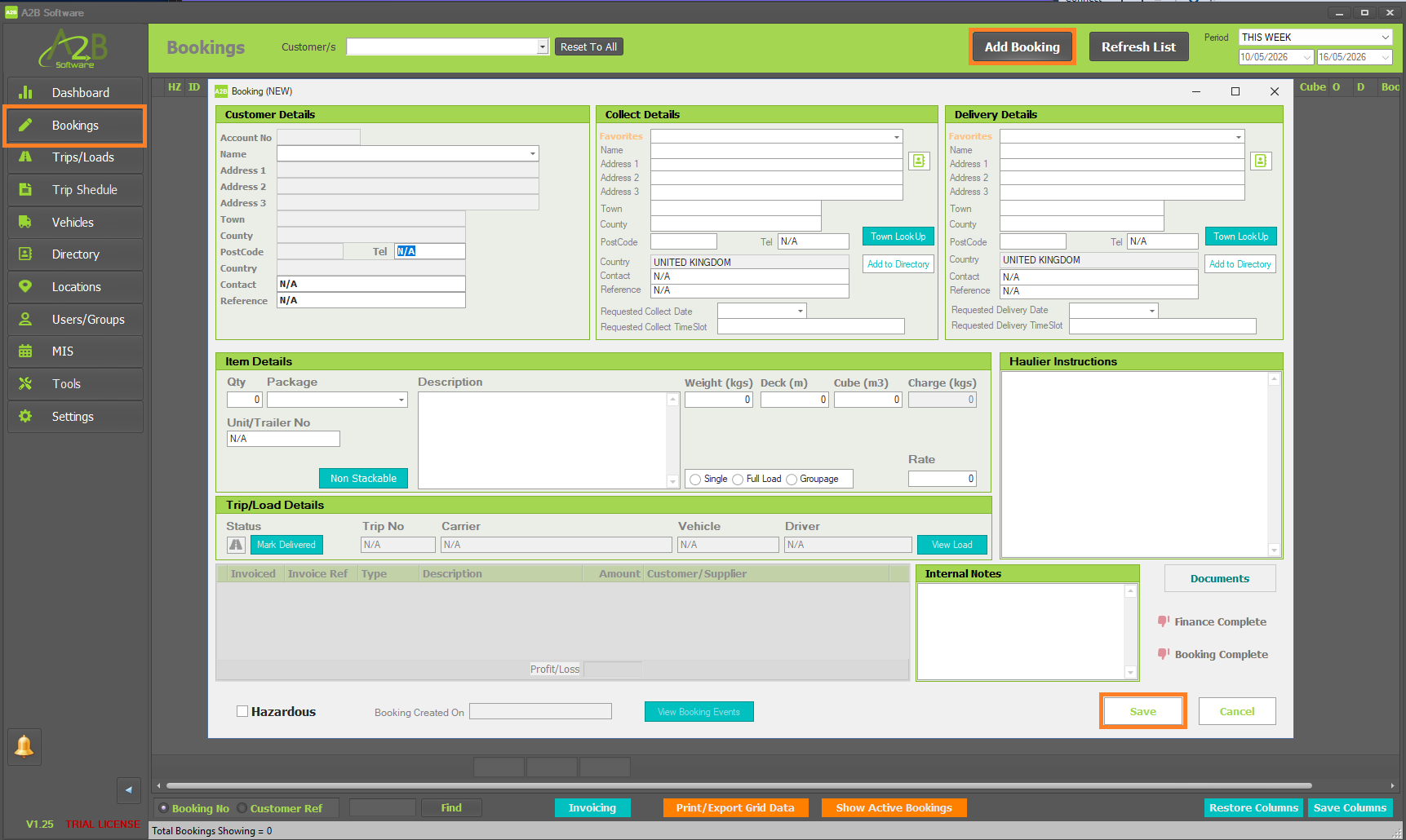
Add your first Booking
To add your first Booking, click on 'Bookings' within the left menu then click the 'Add Booking' button towards the top right of the A2B TMS.
Depending on what Booking Screen you have set within 'Settings' will determine what layout you will see - both shown below;
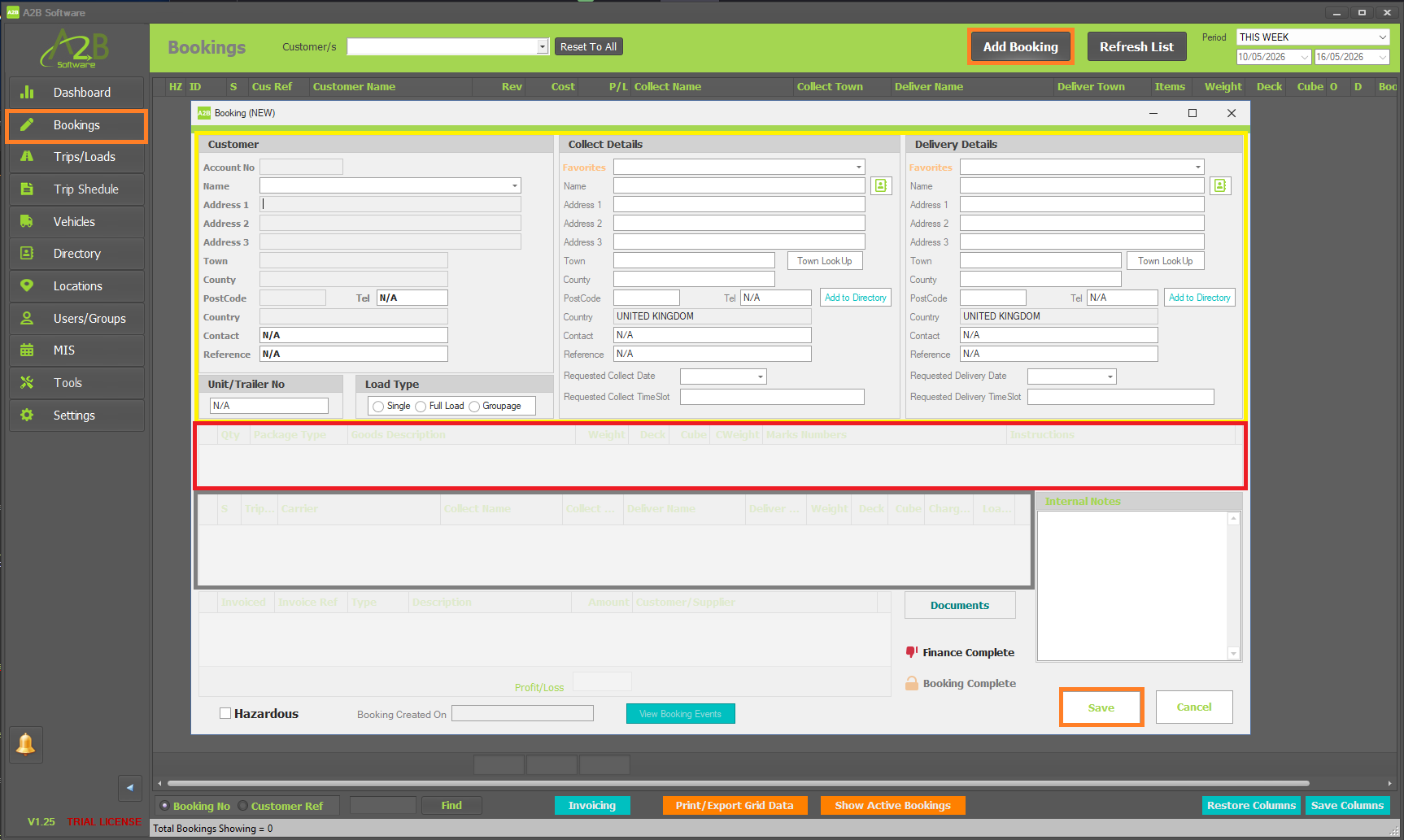
1: COMPLEX (Multiple Items)
There are three (3) stages to the Complex booking layout outlined below;
Stage 1 - highlighted in Yellow
These are your Customers' Details, Collect Details and Delivery Details. Enter all of the required data and click 'Save' - once the Booking has been created, you will then be able to create your 'Items' (single or multiple) in the next section - highlighted in red.
Stage 2 - highlighted in Red
Right-click within the highlighted Red area and select 'Add Item' - a new pop-up will appear where you can enter the Items details, Quantity, Package Type, DIMs etc. Once you have entered all of your Items details, click 'Save' within the pop-up. Once you have been returned back to the Booking screen - right-click on the new Item that you have just created and select 'Create Load' - a new pop-up will appear where you can confirm the Collection Details, Delivery Details, DIMs and add any additional information such as Goods Description and any Haulier Details. You can also add a Rate to this Load which will be used for Invoicing purposes (you can leave this blank and manually add a Haulage Charge later), once you have confirmed the details - click 'Create'.
Stage 3 - highlighted in Gray
This will show the Load that you have just created, if you right-click on the Load, you have the option to Edit the Load, Mark the Load as Collected and Mark the Load as Delivered.
2: STANDARD (single item)
Enter your Customers' details, along with the Collection Details, Delivery Details, Item Details and any Haulier Instructions if any. Once all of the information has been entered, click 'Save' - if all of the required information has been entered, the booking will be successfully created and then you can start to allocate a vehicle to the collection/delivery.