Assign your Bookings Load to a Trip
Once you have successfully created your Booking, navigate to 'Trips/Loads' to assign the Load to a Vehicle.
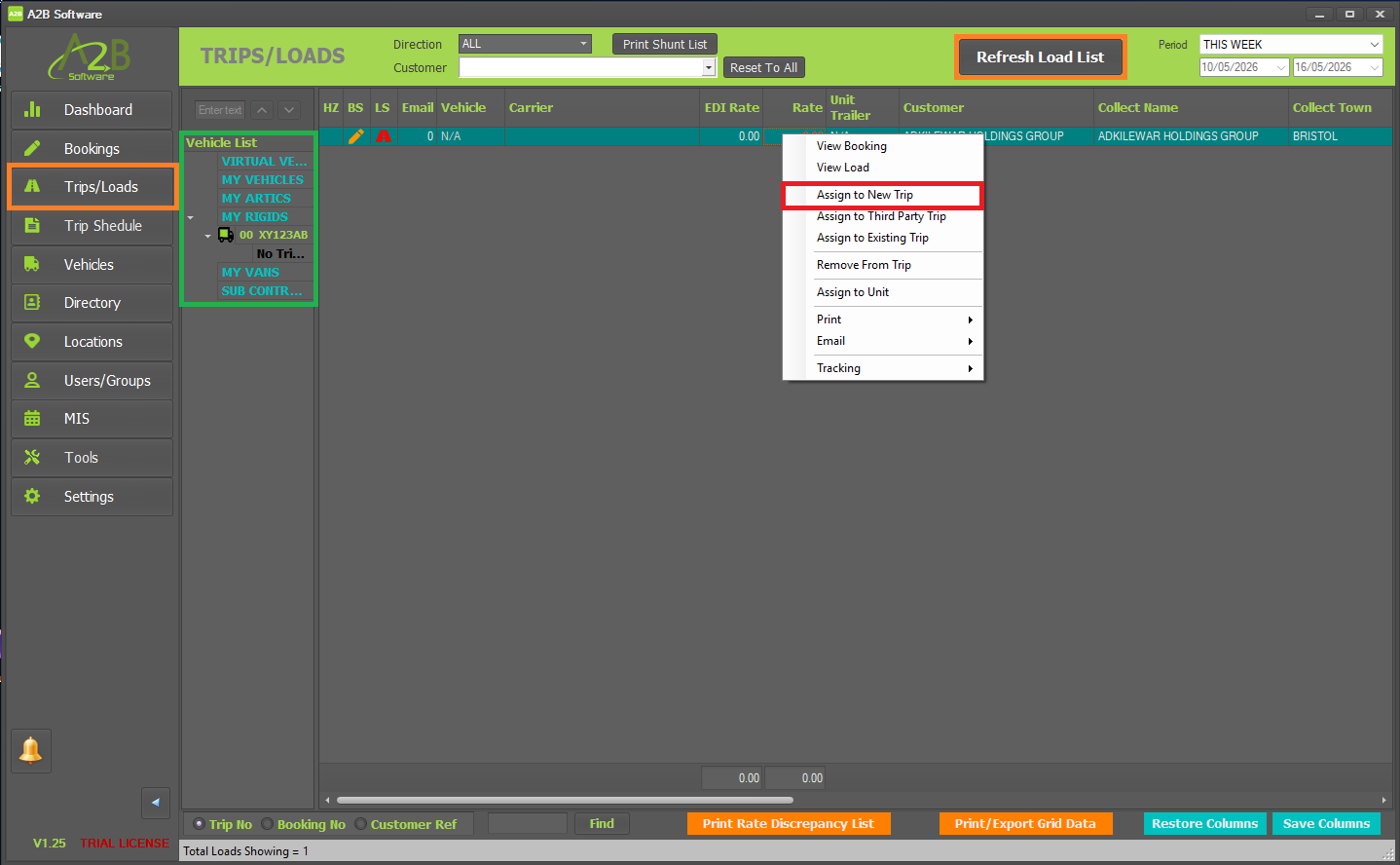
When you first visit 'Trips/Loads' - click the 'Refresh Load List' to view the Load for the newly created Booking.
In the highlighted green section - you can expand your Vehicle list by double-clicking on the Vehicle Categorys. In this example, we have expanded the 'MY RIGIDS' category and expanded the rigid with the license plate of 'XY123AB' which we created during the 'Add your first Vehicle' guide - which we can see has 'No Trips' assigned to that vehicle.
Right-click on the Load that was recently created and select 'Assign to New Trip' (if you already have a Trip created for a Vehicle and want to add a Load to an existing Trip - we would select 'Assign to Existing Trip') - a new pop-up will appear asking you to select the Vehicle, Driver, Start date and any Instructions. Once the required information has been entered, click the 'Save' button to create a new Trip to the selected Vehicle and assign the Load to that Trip and Vehicle.